


Connect
Transfer instax™ photos and movies saved in other instax™ Apps to the instax UP!™ App.
Even store image data printed with an instax Link™ series Smartphone printer, instax mini Evo™ or instax mini LiPlay™ to create a collection combining of all your favorite instax™ photos and movies!
To connect a compatible instax™ App, please update to the most recent version and download the instax UP!™ App.
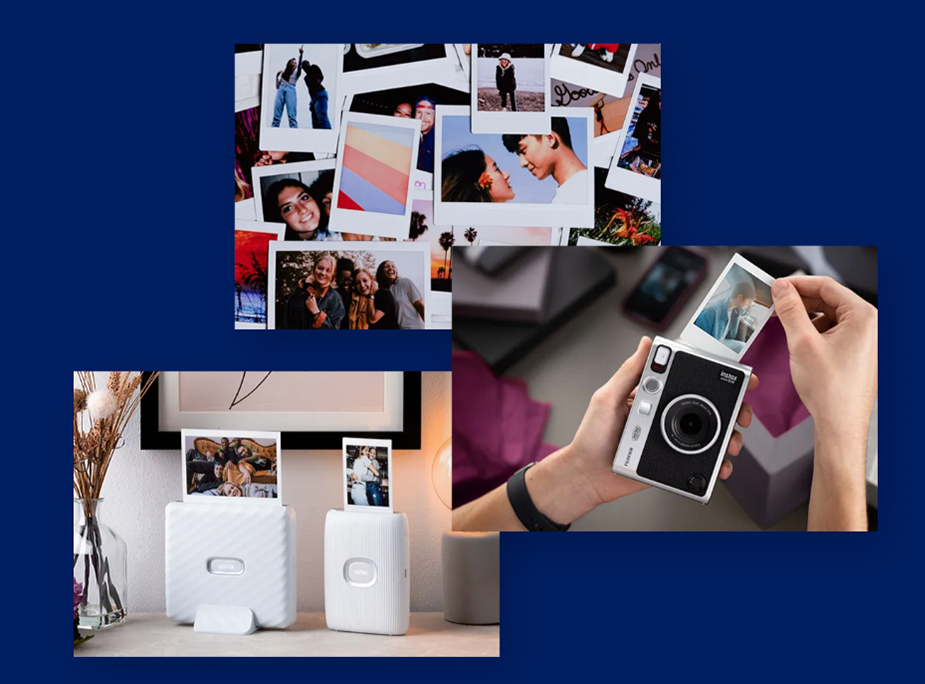
Which App(s) do you have?









STEP.1
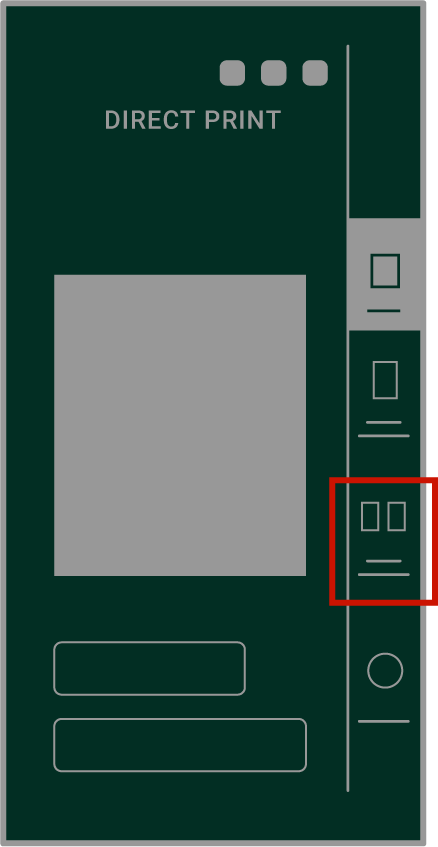
Select "Transferred Images"
STEP.2
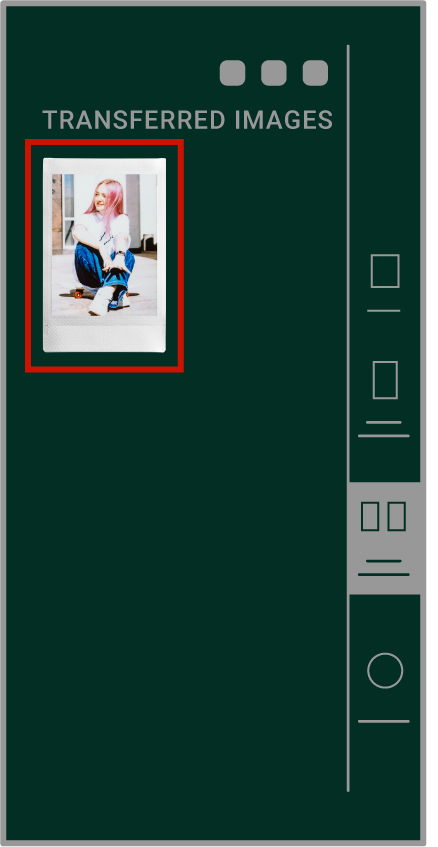
Select the instax™ photos that you'd like to transfer to instax UP!™
STEP.3
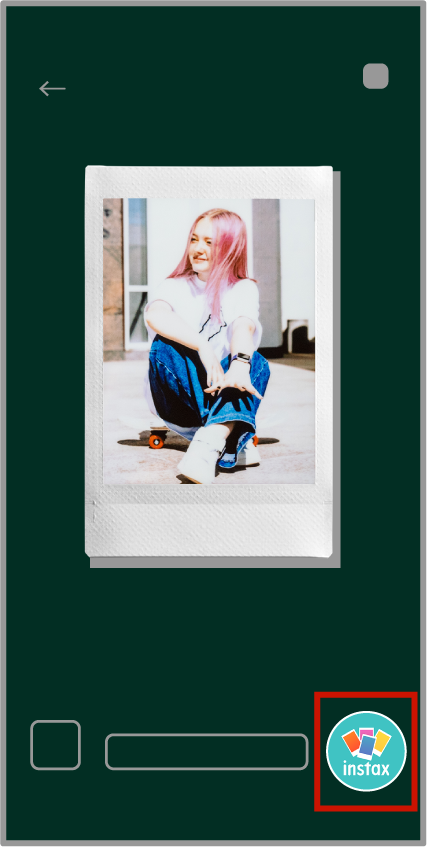
Press the  button to add them to
the instax UP!™ App
button to add them to
the instax UP!™ App
STEP.4
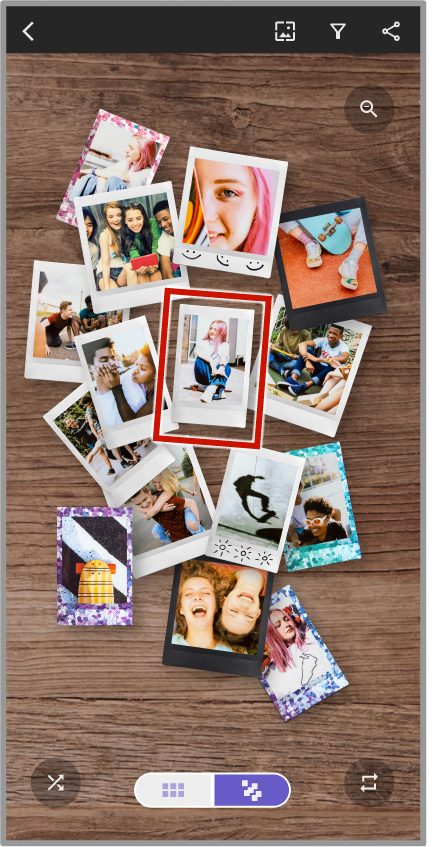
Launch the instax UP!™ App to add your instax™ photos to the gallery.
- Click here for info on how to transfer printed images to your Smartphone.
 instax mini Evo™ / instax mini LiPlay™
 - Screen images shown might be different from the actual screens used in the App.

STEP.1
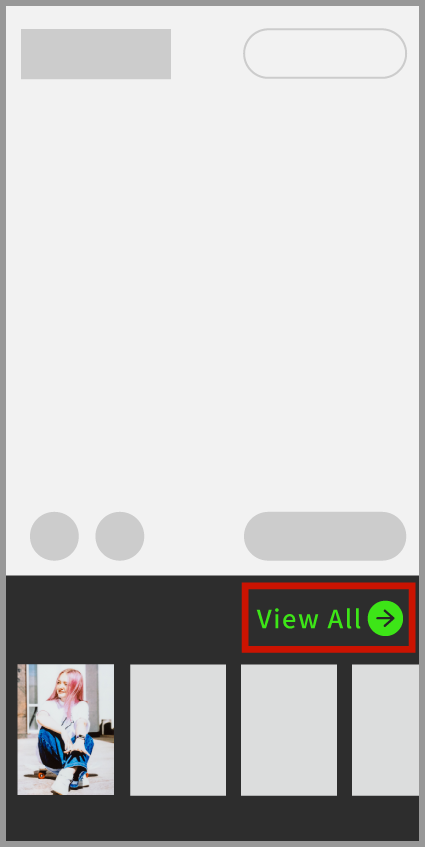
Tap “View All” on the app's top screen to display the gallery.
STEP.2
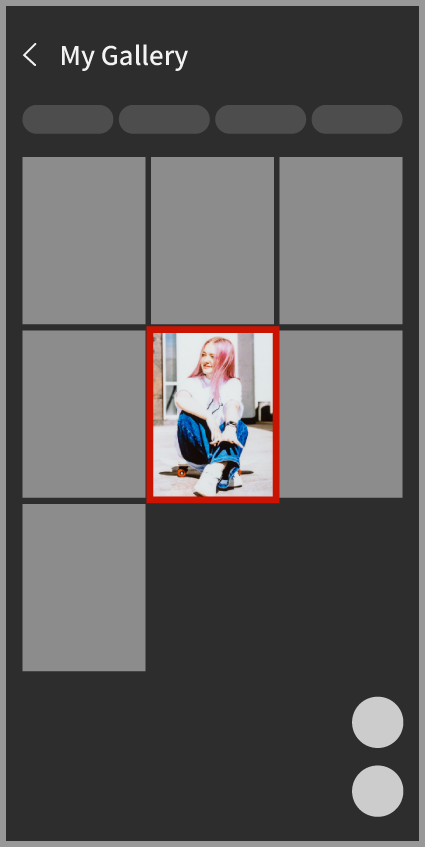
Select the instax™ photos that you'd like to transfer to instax UP!™
STEP.3
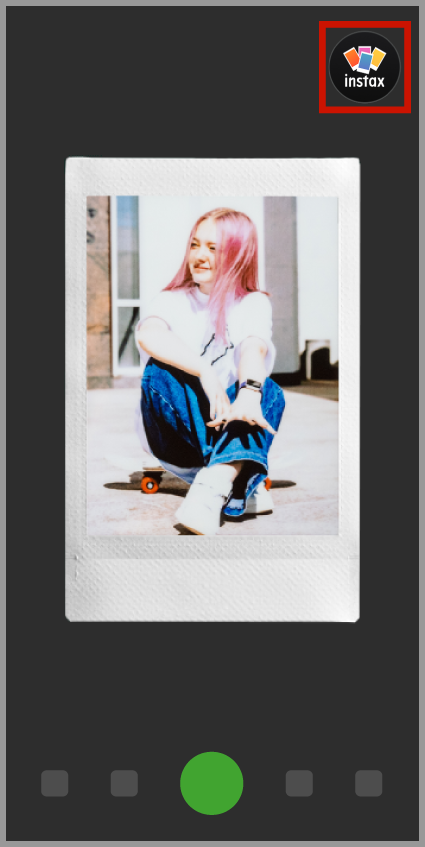
Press the button to add them to the instax UP!™ App.
STEP.4
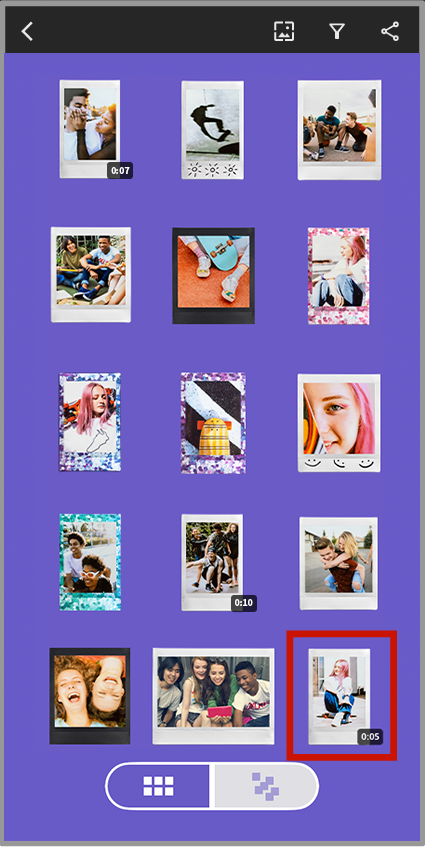
Launch the instax UP!™ App to add your instax™ photos to the gallery.
- Screen images shown might be different from the actual screens used in the App.









STEP.1
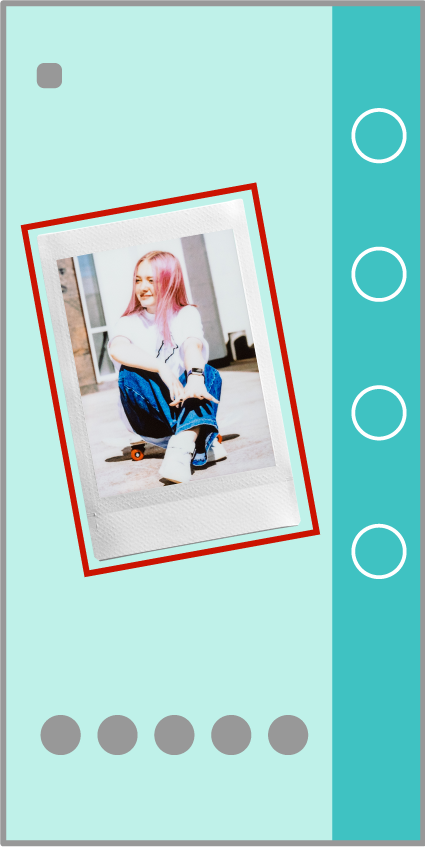
Tap the instax™ photo shown on the App's home screen to access "Print History"
STEP.2

Select the instax™ photos that you'd like to transfer to instax UP!™
STEP.3
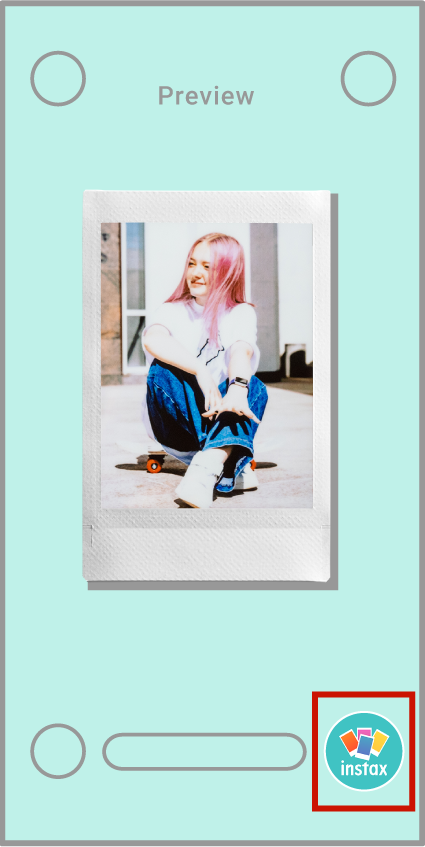
Press the button to add them to
the instax UP!™ App
STEP.4
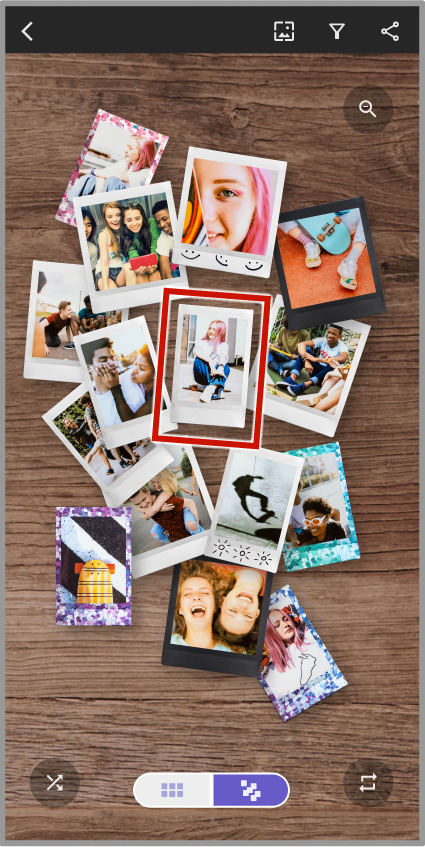
Launch the instax UP!™ App to add your instax™ photos to the gallery.
- Screen images shown might be different from the actual screens used in the App.




- *Apple and the Apple logo are trademarks of Apple Inc., registered in the U.S. and other countries and regions. App Store is a service mark of Apple Inc.
- *Google Play and the Google Play logo are trademarks of Google LLC.